
send style and save link to client
Style and save link
Once a plan is finished, you can choose to send a Style and save link to your client so they can customise the plan, including changing room titles.
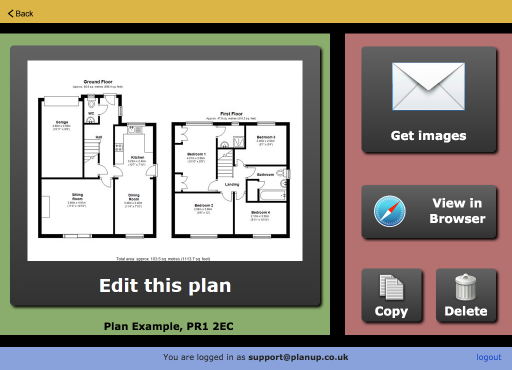
To send a Style and Save link you first need to change where you are sending the plan. To do this:
- Tap on Get images:
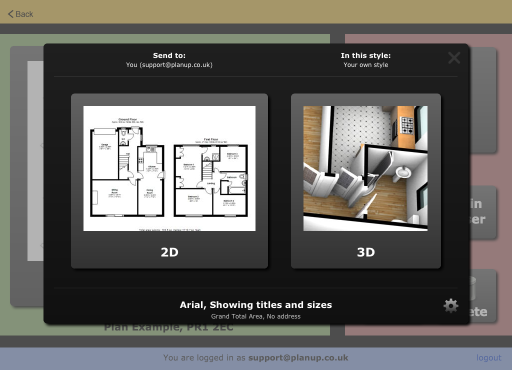
- Tap where it says Send to above the 2D button.
- You will now have a drop down with an option to Add a customer... - tap on this.
- Enter a name for the client and the email address and tap on Save.
- The screen will now change to show additional options below the 2D and 3D buttons:
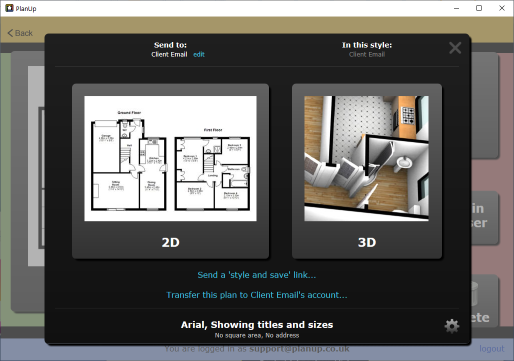
- Tap on the top link - Send a Style and Save link...
- The following message will appear:
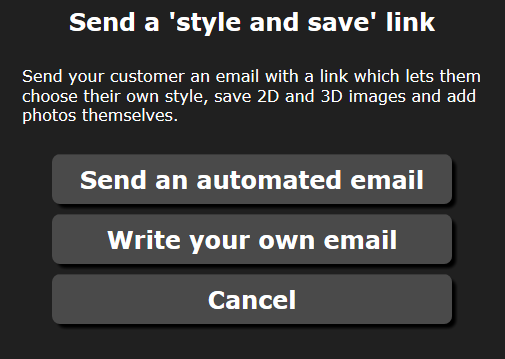
- To send the Style and Save link you can either:
- Tap Send an automated email to confirm and send the email to the email address you entered. Your client will then receive an email similar to the below. Or;
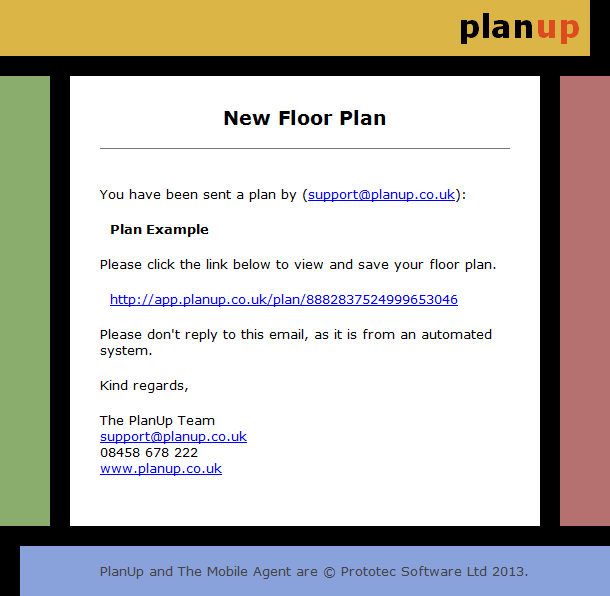
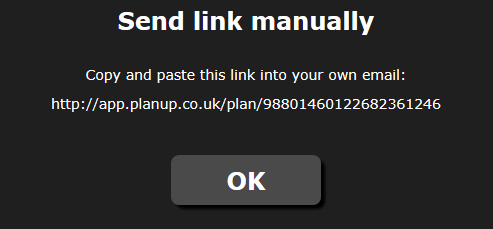
- Tap Send you own email. You will now be shown the link (similar to below) which you can copy and send in an email of your own devising.
- Your client then clicks on the link in the email they receive – they do not need to log in.
- From the page that opens they can alter room titles and any room measurements displayed on the plan as well as customising the look of the plan.
- Images and other outputs are also saved in the same way i.e. requesting images to be sent via email or saving directly.
To see a working example of exactly what is received from the Style and Save link please click on the following link: Style and Save Example
A user guide for recipients of this link can be found here: Style and Save link end user guide